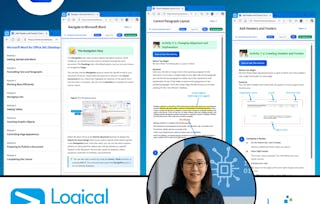
In our fast-paced digital world, the need to capture ideas, meeting notes, and to-do items is ever present. Microsoft'sĀ® OneNoteĀ® app provides a way for you to efficiently create and collect your notes in an electronic notebook. This course will help you use OneNote notebooks to store a wide variety of content in an organized structure, access the content from anywhere, and also share it with others. Additionally, learning how OneNote and other applications in the Microsoft 365 suite are integrated will increase your productivity.
This course is intended for people in a variety of roles and fields who have a basic understanding of Microsoft 365 and want to incorporate digital note taking and note collaboration by using Microsoft OneNote.
In this course, you will: navigate and customize the OneNote environment and create your first notebook; add and format various types of notes and note elements, including text, links, and drawing objects; add images, video, audio, Excel spreadsheets, and other types of files to a notebook; organize, categorize, and search notebook content; finalize notebook content by checking spelling, printing copies, and password-protecting notebooks; manage notebooks by exporting content and working with history and backups; and share notebooks using Outlook and collaborate with colleagues using OneDrive.
This course requires that you have Microsoft OneNote installed on a Windows PC. The course setup instructions provided in the first module of the course go into more detail about the hardware and software requirements.
In this first lesson, you will get started by exploring the different parts of a notebook and learning how to navigate the OneNote interface. Understanding the OneNote environment and the components of a notebook, adding notes, and adding other content are the building blocks for learning OneNote.
Inclus
15 plugins
Afficher les informations sur le contenu du module
15 pluginsā¢Total 105 minutes
Data Files and Setup for This Courseā¢15 minutes
About This Courseā¢1 minute
Lesson Introductionā¢1 minute
Topic 1A: Navigate the OneNote Environmentā¢1 minute
1A-1: Readingā¢15 minutes
1A-2: Activityā¢10 minutes
1A-3: Activityā¢10 minutes
Topic 1B: Create Notebook Pages from Page Templatesā¢1 minute
1B-1: Readingā¢5 minutes
1B-2: Activityā¢10 minutes
Topic 1C: Customize the OneNote User Interfaceā¢1 minute
1C-1: Readingā¢10 minutes
1C-2: Activityā¢10 minutes
Mastery Builder: Creating a Custom Page Templateā¢10 minutes
Now that you know how to navigate notebooks, you're ready to add content to them. Within each MicrosoftĀ® OneNoteĀ® notebook page, you have the ability to add a wide variety of content and also format note entries for a specific look and feel. These features will enhance your notebook and make the content easier to read and edit.
Inclus
18 plugins
Afficher les informations sur le contenu du module
18 pluginsā¢Total 130 minutes
Lesson Introductionā¢1 minute
Topic 2A: Format Notebook Contentā¢1 minute
2A-1: Readingā¢15 minutes
2A-2: Activityā¢10 minutes
Topic 2B: Add Quick Notes and Linked Notes to a Notebookā¢1 minute
2B-1: Readingā¢5 minutes
2B-2: Activityā¢10 minutes
2B-3: Activityā¢10 minutes
2B-4: Readingā¢5 minutes
2B-5: Activityā¢10 minutes
Topic 2C: Use Drawing Tools in a Notebookā¢1 minute
2C-1: Readingā¢10 minutes
2C-2: Activityā¢10 minutes
Topic 2D: Use Dictation in a Notebookā¢1 minute
2D-1: Readingā¢5 minutes
2D-2: Activityā¢10 minutes
Mastery Builder: Formatting and Drawing in a Notebookā¢20 minutes
As a MicrosoftĀ® 365 product, OneNoteĀ® can work with files from other 365 applications. You can create links to other files on a notebook page to avoid having to create duplicate content. An even more powerful feature is the ability to embed a file so that you can make changes to the file content and update the file in its source application without leaving the OneNote interface.
Inclus
15 plugins
Afficher les informations sur le contenu du module
15 pluginsā¢Total 89 minutes
Lesson Introductionā¢1 minute
Topic 3A: Insert Images, Video, and Audio into a Notebookā¢1 minute
3A-1: Readingā¢5 minutes
3A-2: Activityā¢10 minutes
3A-3: Readingā¢5 minutes
3A-4: Activityā¢10 minutes
Topic 3B: Embed Excel Spreadsheets in a Notebookā¢1 minute
3B-1: Readingā¢5 minutes
3B-2: Activityā¢10 minutes
Topic 3C: Attach Other File Types to a Notebookā¢1 minute
3C-1: Readingā¢5 minutes
3C-2: Activityā¢10 minutes
3C-3: Activityā¢10 minutes
Mastery Builder: Embedding Spreadsheet Data in a Notebookā¢10 minutes
As the number of sections and pages in your notebooks increases, the ability to search for specific content becomes an important feature. OneNote provides various ways to help you identify notebook content faster.
Inclus
10 plugins
Afficher les informations sur le contenu du module
10 pluginsā¢Total 78 minutes
Lesson Introductionā¢1 minute
Topic 4A: Use Tags to Categorize Notesā¢1 minute
4A-1: Readingā¢5 minutes
4A-2: Activityā¢15 minutes
Topic 4B: Organize and Search Notebooksā¢1 minute
4B-1: Readingā¢10 minutes
4B-2: Activityā¢15 minutes
4B-3: Activityā¢15 minutes
Mastery Builder: Searching for Text and Tagged Itemsā¢10 minutes
When you have completed your page content, especially if you plan on printing or publishing your notes, you may want to perform some tasks for finalization. This can include everything from checking spelling, to setting up print options, to password-protecting a notebook that contains private information, and more. This lesson will help you acquire these skills.
Inclus
9 plugins
Afficher les informations sur le contenu du module
9 pluginsā¢Total 68 minutes
Lesson Introductionā¢1 minute
Topic 5A: Proof and Print a Notebookā¢1 minute
5A-1: Readingā¢15 minutes
5A-2: Activityā¢15 minutes
Topic 5B: Configure Password Protection and Notebook Propertiesā¢1 minute
5B-1: Readingā¢5 minutes
5B-2: Activityā¢15 minutes
Mastery Builder: Proofing and Printing a Reportā¢10 minutes
You may find that you need to modify the underlying file format of your OneNote notebooks to make them easier to share and store. Likewise, you should understand how OneNote keeps backup copies and a history of your notebooks so that you can have a little peace of mind as the number of pages and importance of your notebook content grows.
Inclus
10 plugins
Afficher les informations sur le contenu du module
10 pluginsā¢Total 63 minutes
Lesson Introductionā¢1 minute
Topic 6A: Export Content from a Notebookā¢1 minute
6A-1: Readingā¢5 minutes
6A-2: Activityā¢10 minutes
Topic 6B: Manage Notebook Historyā¢1 minute
6B-1: Readingā¢10 minutes
6B-2: Activityā¢10 minutes
6B-3: Activityā¢10 minutes
Mastery Builder: Maintaining and Exporting Notebook Filesā¢10 minutes
Now that you know how to create and edit notebook content as well as manage notebook files, the final step is sharing and collaborating with others using MicrosoftĀ® OneNoteĀ®. In this lesson, you will learn how a team collaborates using the Microsoft OutlookĀ® features and shared OneNote notebooks.
Inclus
14 plugins
Afficher les informations sur le contenu du module
14 pluginsā¢Total 85 minutes
Lesson Introductionā¢1 minute
Topic 7A: Send Notebook Pages to Othersā¢1 minute
7A-1: Readingā¢5 minutes
7A-2: Activityā¢10 minutes
Topic 7B: Work with Integrated Outlook Featuresā¢1 minute
7B-1: Readingā¢1 minute
7B-2: Activityā¢10 minutes
7B-3: Activityā¢10 minutes
Topic 7C: Collaborate on Notebooksā¢1 minute
7C-1: Readingā¢10 minutes
7C-2: Activityā¢10 minutes
7C-3: Activityā¢10 minutes
Mastery Builder: Using OneDrive to Share Notebook Contentā¢10 minutes
Logical Operations is the world's largest general publisher of instructor-led technology curriculum, and a leader in the technical training community for over 40 years. We employ a rigorous, expert-driven authoring process that, for decades, has produced successful results for learners the world over. Our courseware aligns with real-world business needs and objectives, ensuring learners are able to apply their newly developed skills while on the job.
When will I have access to the lectures and assignments?
To access the course materials, assignments and to earn a Certificate, you will need to purchase the Certificate experience when you enroll in a course. You can try a Free Trial instead, or apply for Financial Aid. The course may offer 'Full Course, No Certificate' instead. This option lets you see all course materials, submit required assessments, and get a final grade. This also means that you will not be able to purchase a Certificate experience.
What will I get if I purchase the Certificate?
When you purchase a Certificate you get access to all course materials, including graded assignments. Upon completing the course, your electronic Certificate will be added to your Accomplishments page - from there, you can print your Certificate or add it to your LinkedIn profile.
Is financial aid available?
Yes. In select learning programs, you can apply for financial aid or a scholarship if you canāt afford the enrollment fee. If fin aid or scholarship is available for your learning program selection, youāll find a link to apply on the description page.